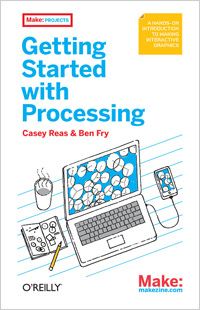
想不到一陣子沒接觸Processing出了本新書了
Getting Started with Processing
Casey Reas and Ben Fry.
Published June 2010, O'Reilly Media. 208 pages. Paperback.
» Order Print/EBook from O'Reilly
» Order Print from Amazon.com
This casual, inexpensive book is a concise introduction to Processing and interactive computer graphics. Written by the founders of Processing, it takes you through the learning process one step at a time to help you grasp core programming concepts. You'll learn how to sketch with code -- creating a program with a few lines of code, observing the result, and then adding to it. It was written to help reader:
mming 發表在 痞客邦 留言(0) 人氣(289)
Processing in Eclipse
http://processing.org/learning/tutorials/eclipse/
This tutorial is for Processing version 1.0+. If you see any errors or have comments, please let us know.
This tutorial assumes you already have Java and Processing installed on your computer. This is also not an Eclipse tutorial, but just covers the basics to get you up and running with Processing in Eclipse.
Step 1. Download and install Eclipse(下載並安裝Eclipse)
Grab "Eclipse IDE for Java Developers" from http://www.eclipse.org/downloads/. When you first run eclipse, it will ask you for a workspace directory. This is the directory where you will store your project files so pick something reasonable that you will remember.
Step 2. Create a new project.(新建一個專案)
If you see a Welcome screen, go ahead and close it. Then go to FILE --> NEW PROJECT and select "Java Project." Click next. Enter your project name (for example, "TestProcessing") and select "Finish."
Step 3. Import the Processing libraries(匯入Processing的函式庫)
Eclipse doesn't know anything about Processing so we'll have to go and get the Processing libraries ourselves. One way to do this is by pointing Eclipse to Processing's "lib" directory (see this tutorial), however, because we intend on sharing the project via a CVS, it's a good idea to copy the necessary Processing files into the project folder itself so that everything stays together. Go to:
FILE --> IMPORT --> GENERAL --> FILE SYSTEM.
Click next. Click browse and find the Processing application. On Windows you will then want to look inside the directory called "lib", but on Mac (for Processing 1.0=) you'll have to go inside the application's "package contents": Processing->Contents->Resources->Java. Select the file "core.jar" inside the lib (PC) or Java (Mac) folder.

Click "finish."
You should now see "core.jar" listed under your project in the package explorer.

Right-click on the file and select
BUILD PATH --> ADD TO BUILD PATH.
The "core.jar" file should now appear with a jar icon. (Note this right-click option will only show up in the "Package Explorer." If you are in the "Project Explorer" or some other view, switch by going to WINDOW --> SHOW VIEW --> PACKAGE EXPLORER.)

|
mming 發表在 痞客邦 留言(0) 人氣(782)
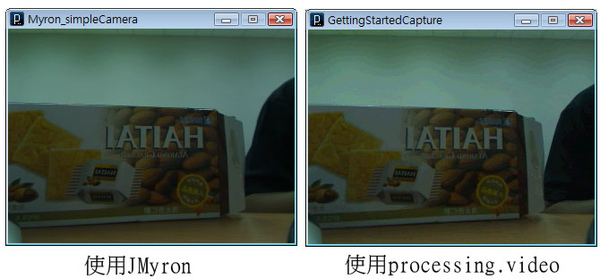
在此之前,就是一個單純的懶= =
一直想說應該有方法可以解決processing.video解析度很差的問題orz
結果到現在終於去使用了JMyron,果然,人還是不能太懶
在一開下去的瞬間,心中滿滿的是感動
mming 發表在 痞客邦 留言(0) 人氣(362)
遇到了個奇妙的問題cannot find a class or type named "test"
解然後就覺得很奇怪,原來是void setup建構的地方沒打,就會出現這個錯誤
test h1 = new test();
void setup() ←就是這個地方= ="
{
}
class test {
test () {
mming 發表在 痞客邦 留言(0) 人氣(145)

用eclipse來add external jar變的很好開發程式尤其是語法的部份,會讓人可以預覽有那些語法,可以省去看javadoc的時間(其實是我懶),只是遇到processing.video的地方= =
變的很慘,偶爾能用偶爾不能用,視窗一開,讀webcam,只要看到畫面是全白的代表applet掛了,真是麻煩
看來要把eclipse當成開發工具,程式寫好將資料copy到processing內執行了
mming 發表在 痞客邦 留言(0) 人氣(227)
先說明我使用的設備,我使用的是"QuickCam Orbit/Sphere AF-WDM",QuickTime 7.5 & WinVDIG1.01
首先遇到了
quicktime.std.stdQTException(QTjava:6.1.3gl),-9405=couldntgetrequiredcomponent,qtversion:7108000 at quicktime.std.stdQTExceptionchekcerror這個問題6版的,在這段安裝的時間,我都只有灌羅技的driver而已沒灌他的軟體
因為我要做的部份影像偵測時不能因為有人員的進入會整個加亮會變暗,本來想說不灌羅技的軟體就不會遇到這個問題了,只是更慘,連webcam都抓不到
遇到了一堆的問題,我目前最好的解決方法是"羅技的webcam一定要裝他的軟體",Processing video才抓的到webcam
下面這個網頁有大部份的問題解決的方法
http://processing.org/reference/libraries/video/index.htmlmming 發表在 痞客邦 留言(0) 人氣(1,398)
轉到eclipse後有一些地方變的不太一樣,要去熟悉
連結webcam的部份我是使用Libraries內的video,
import processing.video.*;
processing裡面的video是使用Quicktime For Java,但是processing抓下來後,Libraries裡面的video目錄中有放了一個QTJava.zip這個檔案他就是用來連結Quicktime的檔案,只是eclipse抓不到,這就使得安裝順序變的很重要了
所以一定要照安裝順序來裝了
1、先安裝java
2、安裝Quicktime
3、安裝WinVDIG 0.99
在webcam的部份,我是使用羅技的webcam,不過還是遇到麻煩了
主要的麻煩,webcam的軟體會自動幫我調校顏色的部份,就算把自動調整的部份都關閉了,還是會自己去變動,這造成了蠻大的麻煩
之前東西一直弄不出來就是因為這樣,當有人走進來的時候,會自動將整個frame加亮,人走出去後會自動將整個變暗
mming 發表在 痞客邦 留言(2) 人氣(1,901)
這個方法是從http://processing.org/discourse/yabb_beta/YaBB.cgi?board=Integrate;action=display;num=1117133941
上面那個網址看來的,為什麼要用eclipse來開發呢= =,因為,processing找不到我要載入的jar檔
沒辦法,只好改個工具了,雖然我本來就不是很呷意processing的開發介面
(1).首先最重要的,當然是到eclipse(
http://www.eclipse.org/)下載eclipse sdk,還要裝JDK
套件的話,我是用JDK5,目錄是在:C:\Program Files\Java\jre1.5.0_15\lib\ext,CLASSPATH,我是不設定,設定了以後JAVA就不會去EXT的地方找了(這我是看 (http://www.oreilly.com.tw/product_java.php?id=a096_install )裡面寫的方法做的)
如果要知道你預設的JVM位置的話,可以到下面的機碼去查看
JDK5HKEY_LOCAL_MACHINE\SOFTWARE\JavaSoft\Java Runtime Environment\
(2).ECLIPSE好用方便,所以用他,哈
(3).
a. 假設你的ECLIPSE放在(D:\ECLIPSE),執行ECLIPSE
b. NEW PROJECT
c. PROJECT NAME(暫設為:HelloP5)
d. NEXT
e. 切換到Libraries(Add External JARs)
f. 新增D:\processing-0135-expert\lib\core.jar
g. Finish
(4).到File Menu -> new -> source folder(新增一個src資料夾,應該是習慣問題,不過我也都是這樣設定,window->java->Build path->設定source folder="src" output folder="bin")
(5).File Menu -> new -> class (名稱要跟專案名稱一樣),所以就叫"HelloP5"
(6).記得要繼承PApplet
Code
mming 發表在 痞客邦 留言(0) 人氣(21,193)

 技術資料 (4)